
Claude Code, clearly explained (and how to use it)
Everything I wish someone told me before I started (in just 15 minutes)

Welcome to the 1,849 of you who have joined us since the last newsletter, it’s great to have you! A quick life update: If you discovered me through my “I turned Claude into my content strategist and got 3,674 new followers and a job offer in 8 days” post… I started that new job this week! I’ll be keeping the content as regular as possible, but bare with me if things are a little delayed. Enjoy this week’s edition as we dive into Claude Code!
Most people I know have a folder.
But ask them to admit it? They never would.
It’s a 15-year-old notebook torn at the edges, falling apart with dreams. Keeping them safe until they can finally come off the page.
A disorganised list hidden in their notes app. An idea graveyard filled with business ideas, tools they wish existed, resources they’d send to every person they’ve ever tried to help, products that solve problems too niche to justify funding and 10 software engineers.
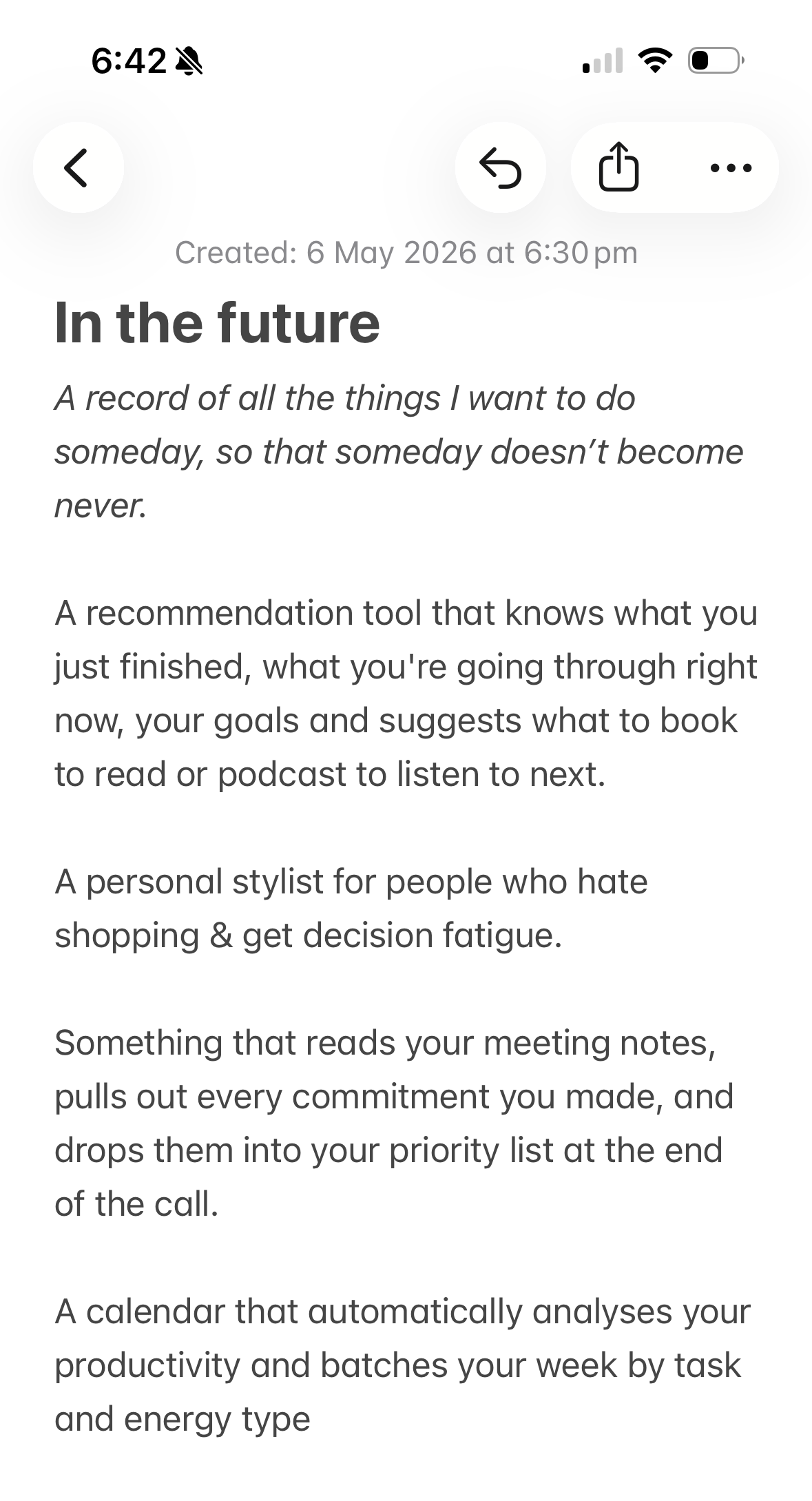
I’ve had a version of this folder since I was nineteen. Later than most.
It started when I walked away from an engineering degree because I looked at the twenty years ahead of me and knew I’d end up miserable. Regardless of the money. I switched to business, and it’s like a switch flicked on inside me. I’ve been building things on the side ever since.
But the folder always filled faster than I could empty it. If you’re reading this, yours is probably overflowing too.
I think I’ve found the solution.
For the past five months I’ve been reading The Beginning of Infinity. I’m six chapters in (it’s that kind of book).
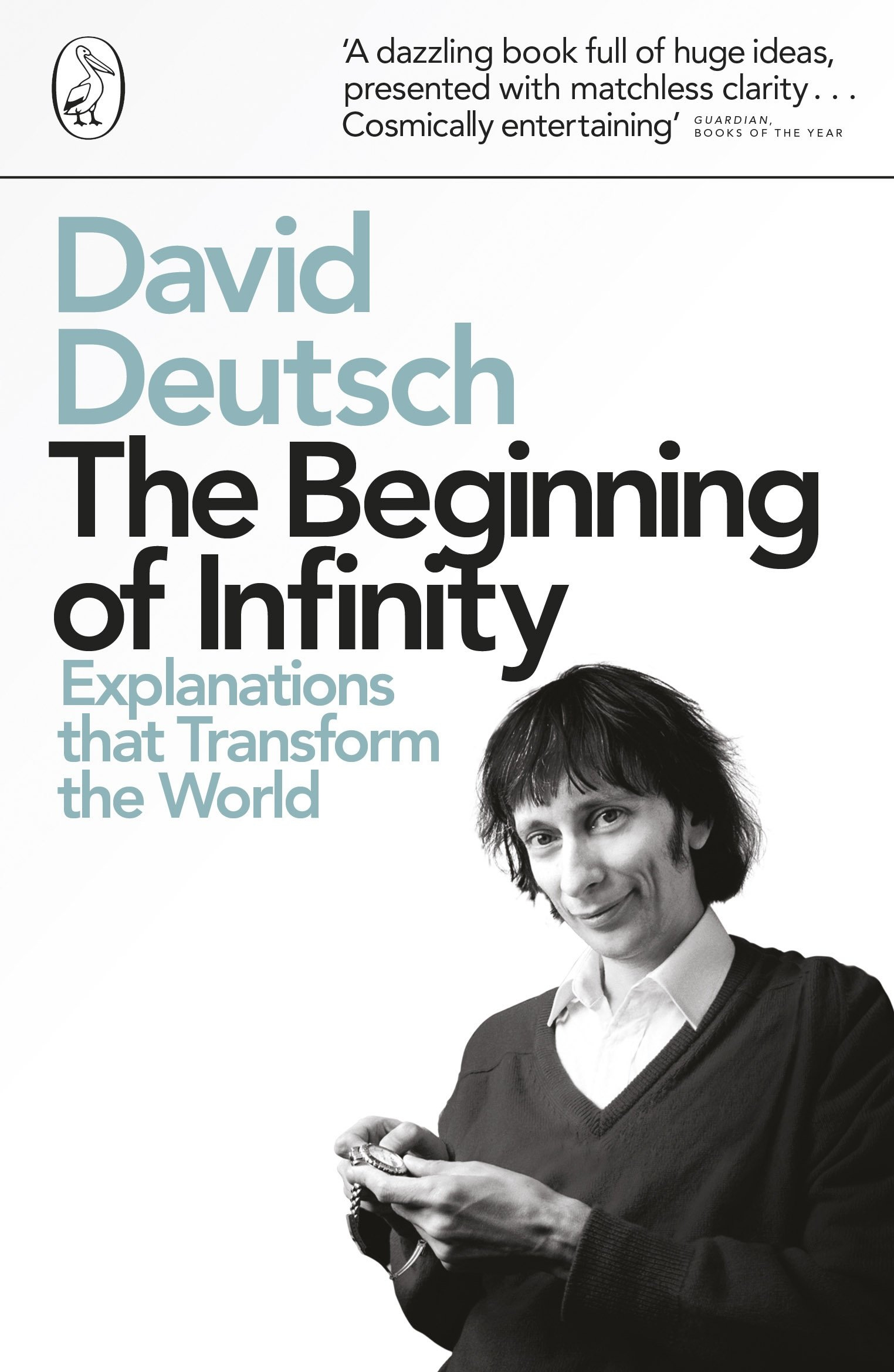
There’s one idea I can’t get out of my head:
“Everything that is not forbidden by laws of nature is achievable, given the right knowledge.” - David Deutsch
Humans are uniquely capable of generating solutions from nothing. We are built for progress. It’s why you and me live at a standard far exceeding the kings of two centuries ago.
I’ve believed some version of this my whole life without having words for it. Better ways exist. The way things have always been done isn’t necessarily the way they should be done going forward. I read books like The Rational Optimist for the same reason I started building things on the side at nineteen - because I think there’s an enormous amount of human potential sitting unrealised, mostly because people don’t have the resources they’d need to act on it.
The limiting factor has never been our ideas or creativity or drive or even discipline. It’s been the access.
Imagine how much more gets created when that access changes.
That’s what’s happening now. The barriers are crumbling down.
I’ve spent the past 6 weeks building in Claude Code. To figure the whole thing out, I read many guides and tutorials. I thought they were all over-hyping it.
But what I’m seeing is my someday folder actually getting smaller.
I built my own website in a few days. In one afternoon, I built a ‘Get to Know Tayla’ app that helped land me my new job.
Or take Ethan Mollick’s experiment. He told Claude code to generate a SaaS idea that would make him $1,000 a month and implement it all without him doing anything. Claude asked Ethan three questions, decided he should be selling prompt packs to professionals for $39, then worked for an hour and fourteen minutes generating hundreds of files and deploying a working website.
“I strongly suspect that if I ignored my conscience and actually sold these prompt packs, I would make the promised $1,000.” Mollick wrote.
We’re at the beginning of a new infinity.
But only if you choose to be a part of it. Because if you don’t create anything, you’ll be consuming others’ creations. If you don’t build anything, you’ll be reliant on what others have built.
So today I want to show you the real Claude Code. What it is, when to use it, and the 3 essential steps to get it working.
My goal is to avoid the hype, the noise, and the AI-generated content teaching you to spend 2 weeks building things that sit there months later. I want to help you build things that actually save time, make money or create real impact.
Think of this as your beginner’s guide to Claude Code. Next week, we’ll use these foundations and I’ll walk through how to build your first tool.
This is Issue 5 of the Claude MBA Series - a practical guide to help you build with Claude, not just learn about it.
I’ve also created a Claude MBA companion guide to help you put this newsletter into action. You can join 12,000+ others who have started it by subscribing.

Step 1: Claude Code, explained like you’re five
I’ve always thought Claude Code sounded extremely complicated. As I was learning, I wanted to see just how simple I could make it. So here’s my attempt.
There’s two terms we need to start with. This is the most technical this newsletter will ever get, and I promise it’s worth it. Once you understand these, everything you hear about AI will make much more sense.
The AI Agent
Claude Code is an AI agent. So is Claude Cowork. An agent is made up of four components working together.
The AI model is the brain: Claude Sonnet, Opus, or Haiku depending on what you’re running. If you’re using Codex, ChatGPT 5.5 will be your model.
The tools are what it can do in order to create a good outcome: read files, search the web, connect to other platforms, write and run code.
The context is what it knows: your CLAUDE.md file (explained in my Claude Cowork guide), your conversation history, any reference files you’ve given it.
And the agent loop is how it keeps working until something is done. This is what makes an agent different from a regular chat.
The Agent Loop
In Claude Chat, you ask something and Claude responds.
I’d be extremely surprised if you’ve ever received a response that took more than five minutes, because Claude only completes the one task that you give it (even if that task has multiple steps).
An agent loop, in comparison, keeps running without you. Claude observes what you’ve asked and the context it can access, thinks about what to do next, acts, then observes the result of what it just did. It runs this loop - observe, think, act - again and again until the task is done or it hits a major roadblock it needs to check with you.
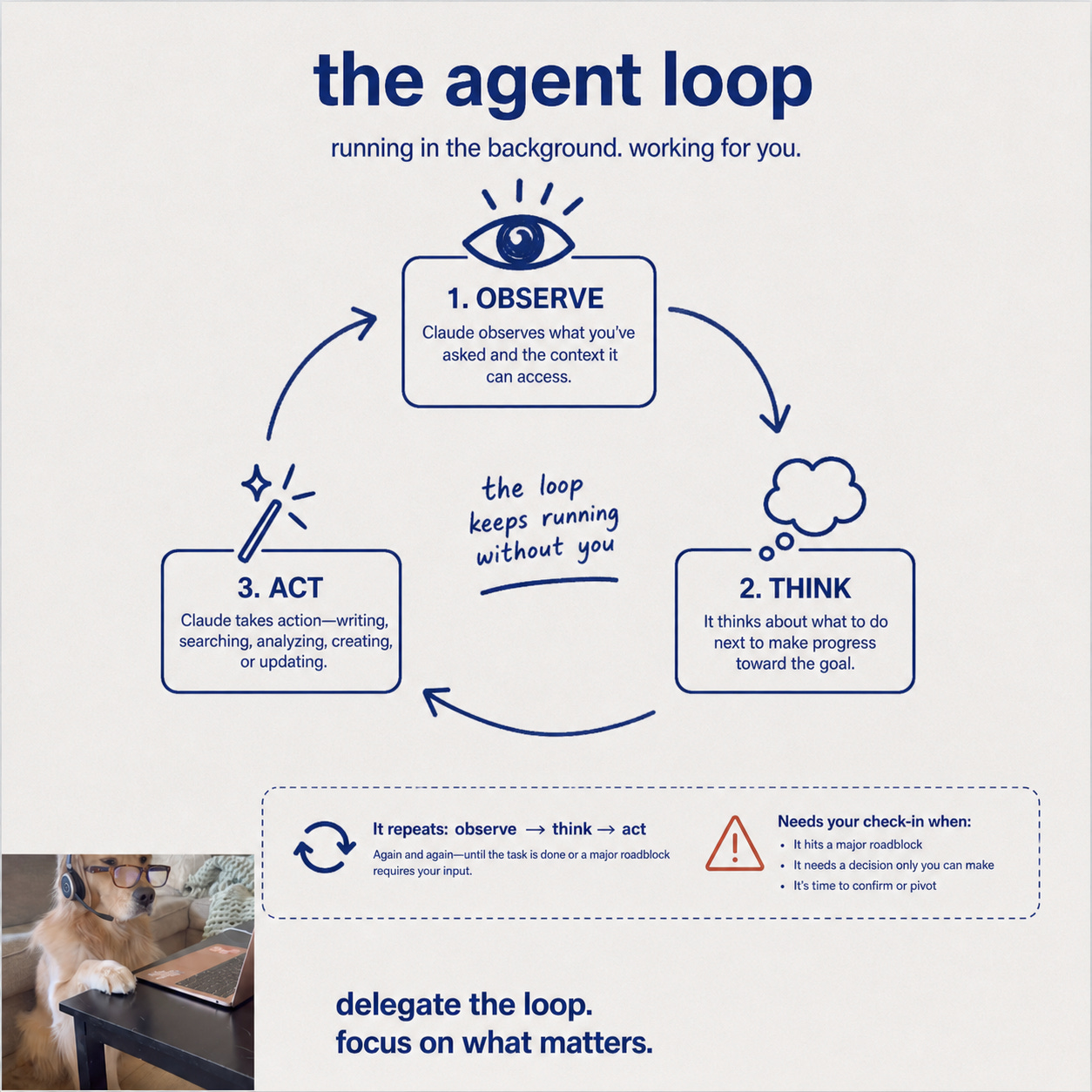
I say major because if it’s missing a small piece of information, it will attempt as many different ways to complete the task until it runs out of options and comes back to bother you to check.
Say you ask Claude Code to read through a month of your content and analytics and pull out the key themes into a strategy document.
It reads your files. Accesses your Notion and email tool. Attempts to access your Instagram and LinkedIn but fails. It tries another way and fails again. So it builds the dashboard without these insights, identifies seven recurring themes, and produces a structured document. In it’s response, it asks if you want it to manually provide it with your analytics from Instagram and LinkedIn to complete the dashboard.
Observe. Think. Act. Repeat.
This matters for you because Claude Code and Claude Cowork are both agents. Both run the loop. The difference is what they’re built to do, which I’ll get to in a moment.
What everyone assumes you know
I don’t really want to admit the amount of times I stared at an article thinking “what the f*ck” in the process of researching Claude Code.
After the fifth, I started recognising that there are a few words that come up constantly when people talk about Claude Code. So in the hopes of sparing you those wtf moments, here’s what they actually mean.
(You don’t need to process all of these now, just scan and save them for future reference so that when you hear a term, you have some kind of knowledge of what it means).
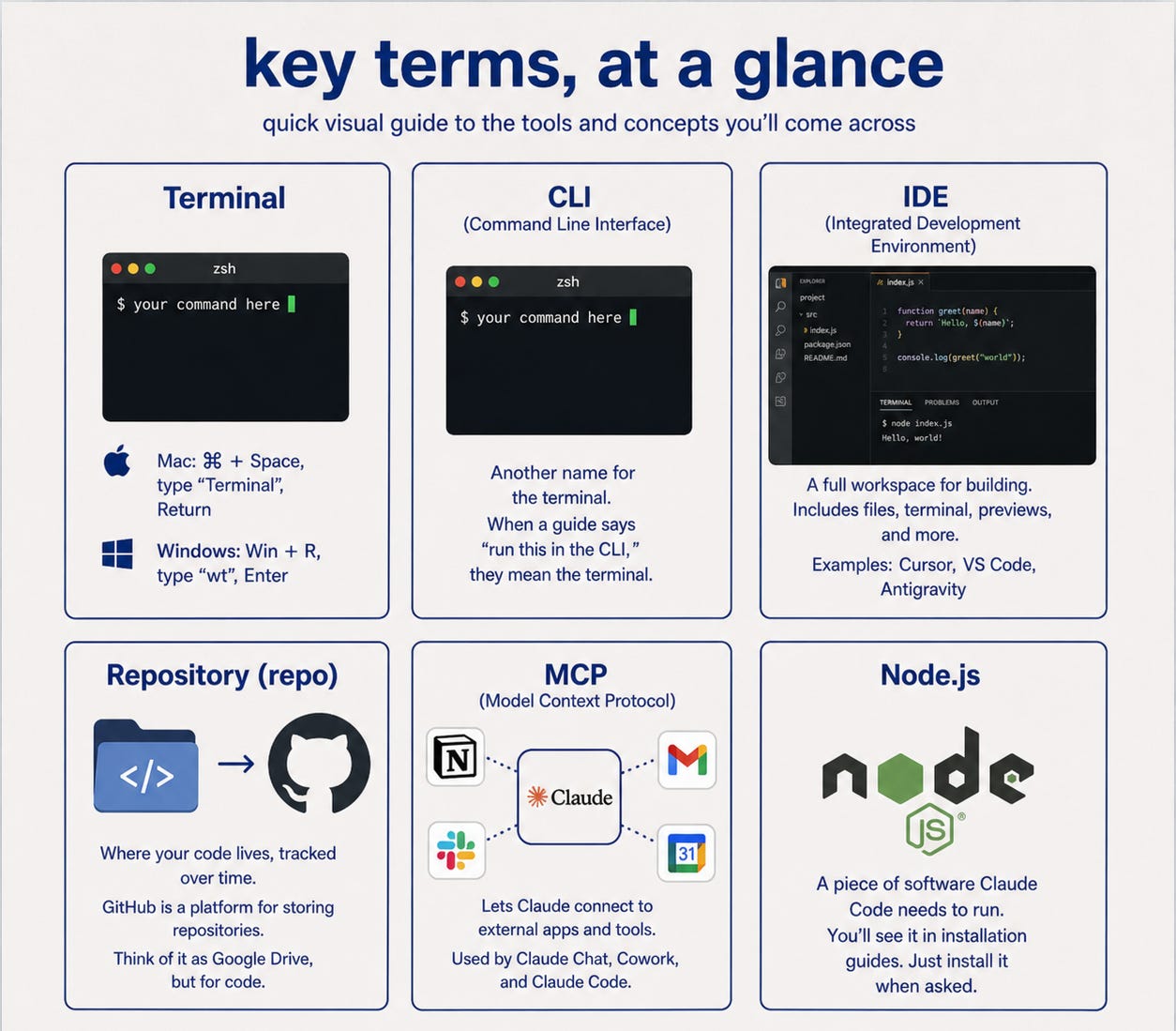
Terminal: A built-in app where you can communicate with your computer’s operating system using text-based commands. Claude Code can run in the terminal. To find it: On a Mac, press Command (⌘) + Space, type “Terminal”, and hit Return. In Windows, press Windows key + R, type “wt”, and press Enter
CLI (Command Line Interface): Another name for the terminal. When a guide says “run this in the CLI,” they mean the terminal.
IDE (Integrated Development Environment): A fancier workspace for working with code. If you open up your Claude app, you can use Claude Code right in the app. But an IDE has extra tools built around it: file management, a terminal, a preview of what you’re building, sometimes even a separate AI chat. Antigravity, Cursor and VS Code are all IDEs.
Repository (repo): Where your code files live, tracked over time so you can see what changed and undo things if something breaks. GitHub is a platform for storing repositories. Think of it as Google Drive, but specifically for code.
MCP (Model Context Protocol): The function that lets Claude connect to external apps and tools. When you ask normal Claude Chat to read your Notion or Gmail, it’s connecting via MCP. Claude Chat and Cowork make these connections easy. Claude Code uses the same system, but requires setting it up manually.
Node.js: A piece of software Claude Code needs installed on your computer to run. You’ll see it mentioned in installation guides. You don’t need to understand what it does. Just install it when asked.
So now that you know the foundations, where does this leave you and what does all of it mean?
Step 2: When to use Claude Code
This might be a hot take (especially in an article about Claude Code), but if you’re non-technical and not interested in intentionally learning AI (other than to further your business, personal brand or career), I don’t see much point in using Claude Code for anything other than building.
Claude Cowork exists and was specifically built to make accessing Claude Code-like capabilities easier for you. Unless you need something to be extremely tailored or more technically advanced, using Claude Code is just creating unnecessary stress and cognitive effort for you.
Both work on your computer, access the same folders and read your Claude.md files.
Both have access to the same AI models.
Both work from your phone through Dispatch (Claude Cowork) or Remote Control (Claude Code).
Both connect to apps, however Claude Cowork does this in one click through connectors, whereas Claude Code requires manual setup.
The real difference between the two is that Claude Code is more powerful. You can work directly with code. You have more control and customisation options. You can use the routines feature to schedule tasks based on activities (i.e. a form being submitted), rather than just a specific time. And you can deploy your code to Github (basically a system that keeps your code safe and backed up) which is helpful when building websites or apps.
But in all honesty, Anthropic is releasing new Cowork features at an INSANE pace and the gap between the two tools is shrinking every single week. I think Claude Cowork could even replace the need to use Claude Code soon enough.
So personally, I don’t use Claude Code to:
Organise my folders or files
Generate slide decks, images or assets
Summarise transcripts or large numbers of files
Create dashboards connecting data from multiple tools
That all lives in Claude Cowork.
Where I do use Claude Code is as my personal engineer. To run more complex automations or build things I want to publish. Websites, landing pages, a platform for my future community, public portfolios.
So now that the foundations are out of the way, go and find that hidden someday folder. It’s time to bring something to life.
Step 3: Choose where to run Claude Code
This was without a doubt the most overwhelming part of the entire process, simply because there was so much competing advice out about exactly where to use Claude Code.
Do I use Claude Code in the app? Or the terminal? What about an IDE? Which IDE? This is what I spent a good day figuring out.
You have two options. You can run Claude Code directly inside the Claude desktop app, which is the simplest place to start.
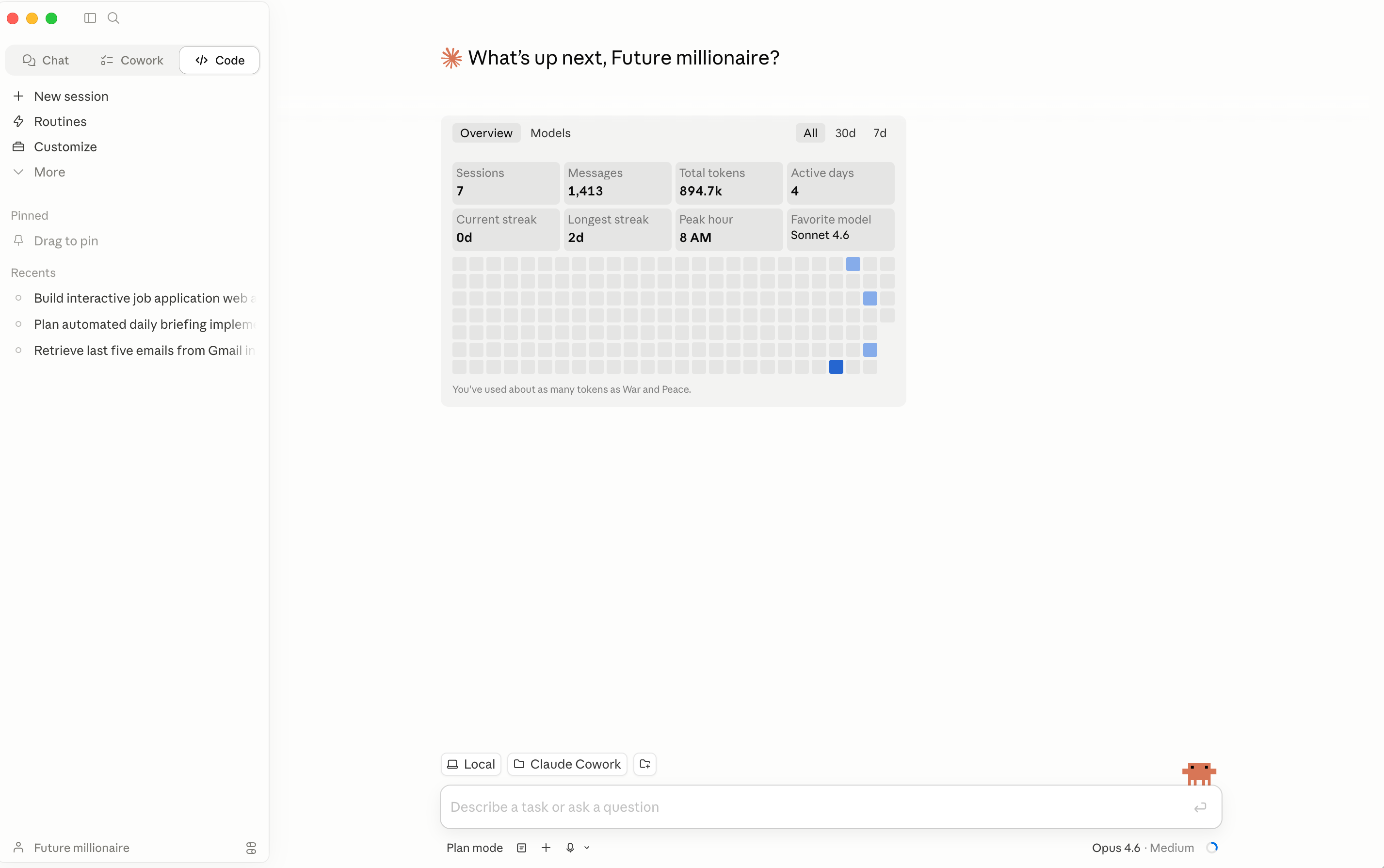
Or you can use an IDE - a separate workspace that gives you a visual layer on top of everything Claude is doing.
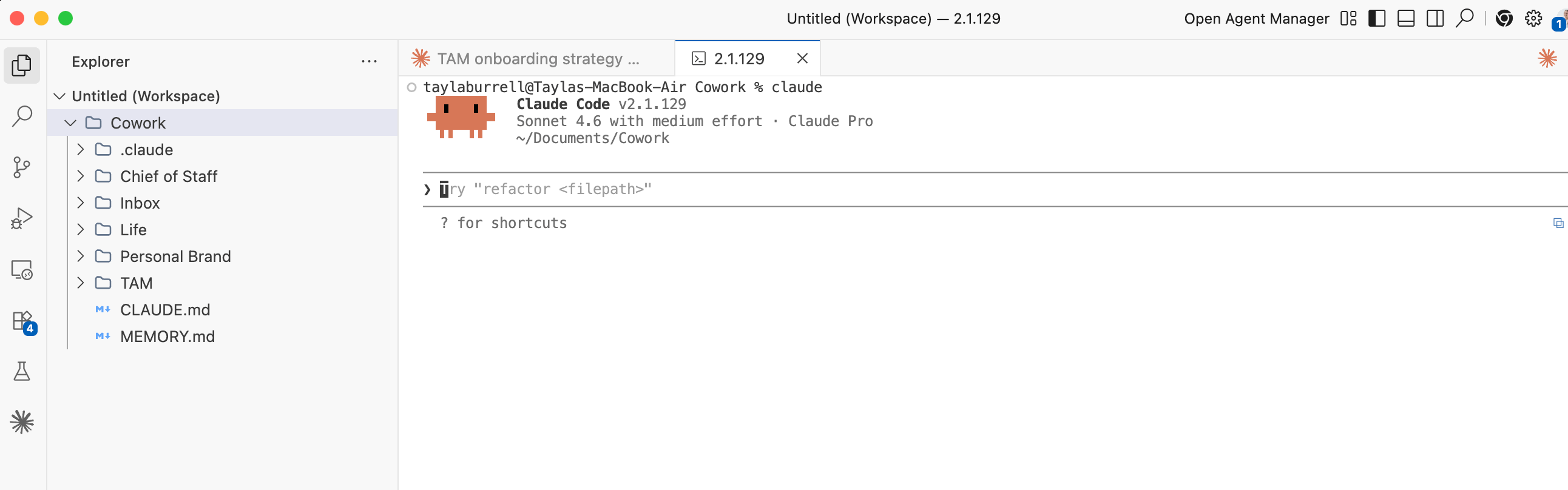
My suggestion is to use an IDE, purely for the visibility it gives. When Claude Code is building something, it’s creating and editing files constantly. In Antigravity, I can see exactly which files Claude is working on in a file panel on the left. In the Claude app, those changes are invisible unless you have Finder open in a separate window.
I chose Antigravity as my IDE, which also has its own AI chat that you can talk with right in the app (without using your own tokens!).
It’s free and available for Mac, Windows, and Linux. Cursor or VS Code are both good alternatives.
You’ll also want to create a new folder in a backed-up location (i.e. Google Drive, OneDrive, iCloud). This is the folder Claude will work in. If you’ve been following along with the Claude MBA and have your Cowork folder set up, you can just use that with Claude Code as well.
The step-by-step installation for both Claude Code and Antigravity is in Week 5 of the Claude MBA Action Plan.
Step 4: Getting familiar with Claude Code
You can start using Claude Code right away, but it’s a bit like driving blind. There’s a few basics I found extremely helpful to know in advance, which will help you understand the 20% that gives you 80% of the results.
1. The four modes
Once you’re in Claude Code, you’ll notice there’s three different modes you can choose from. You can also cycle through these modes by pressing Shift + Tab.
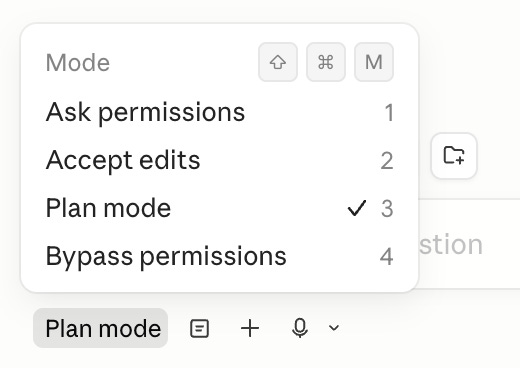
Plan mode: Claude reads everything, thinks through the approach, and writes out a plan. It doesn’t do anything until you confirm. This is where you want to start any new project. Read the plan, change anything that doesn’t look right, and only move forward when you’re happy with the direction.
Ask before edits: Claude works through the task but stops to ask your permission before modifying or creating files. You see what it’s about to do before it does it. This is the default mode and the best setting while you’re getting comfortable.
Edit automatically: Claude works through the task and makes changes without stopping. It may still ask your permission for certain commands. This is best for when you’ve built some familiarity with how it works and want to be able to walk away and have Claude Code keeping working for you.
One thing you might notice if you’re using Claude Code on the app is the option to ‘bypass’ or ‘dangerously skip permissions’. That removes all approval prompts entirely, which I definitely wouldn’t recommend for us non-developers.
The best advice I’ve found is to start every new project in plan mode. Once the plan is confirmed, move to ask before edits or, if you’re comfortable, edit automatically.
2. The file explorer
The file explorer is the panel on the left hand side. When you first open up an IDE like Antigravity, it will prompt you to choose a folder to work in. Just like Claude Cowork, whatever context is in the folder you select is the context that Claude Code can access.
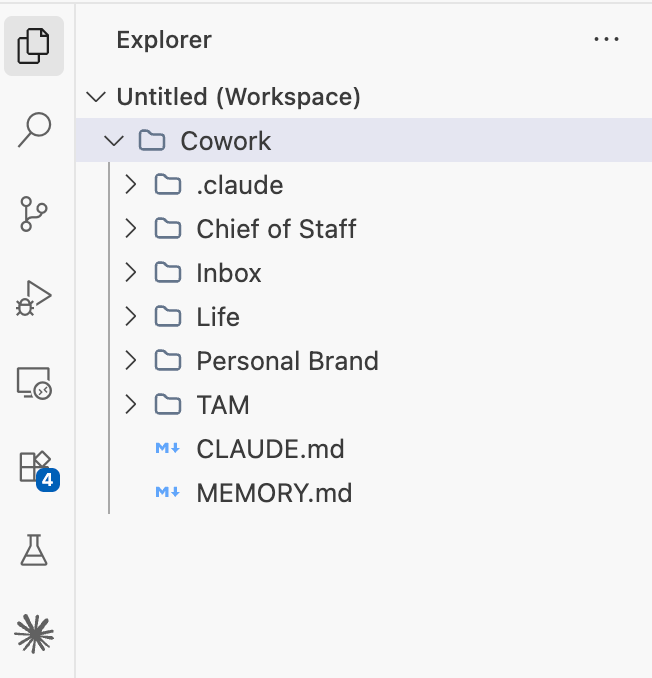
Don’t forget to set up a CLAUDE.md file for each folder. Without context about who you are and what you’re building, whatever Claude creates won’t be personalised. If you’ve been following along with the Claude MBA, your CLAUDE.md is already built. Open your project folder before you start.
3. Context management
Claude Code has a memory limit per session. The longer a session runs, the fuller that memory gets. Past a certain point, the quality of Claude’s work starts to decline - not significantly, but enough that it can cause minor errors.
The simplest way to deal with this is by using /compact. Type this mid-session and Claude frees up context by summarising the conversation so far. Think of this like turning a chapter of a textbook into one page of study notes. It keeps working with the context it needs, but just not every minor detail.
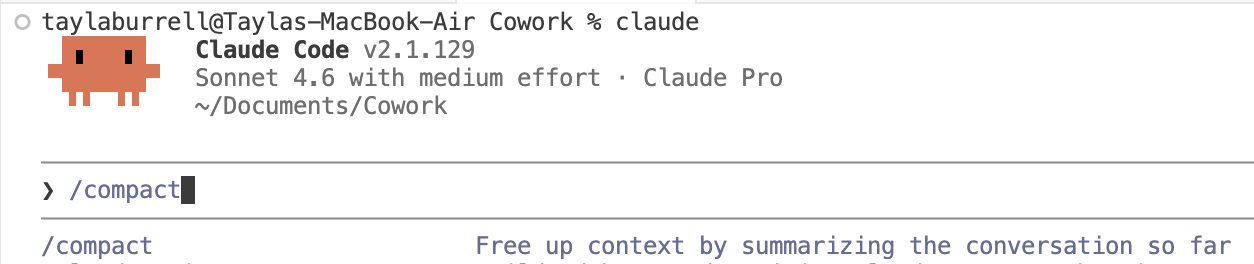
The second is knowing when to just start fresh. If you’ve finished one task and you’re moving on to something unrelated, open a new session. You can do this by using /clear. Don’t worry, your previous session will stay on what’s called ‘the disk’. You can access it by typing /resume.

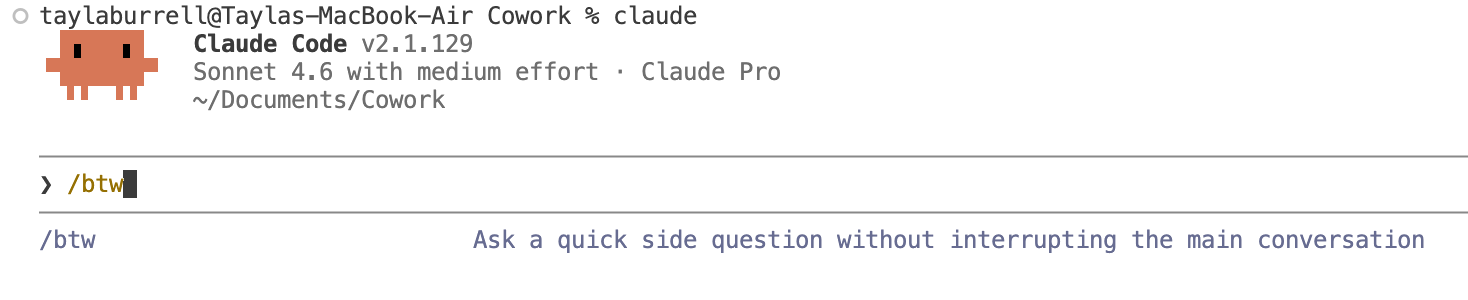
This is completely unrelated to context management but while we’re on / commands, one of my favourites is /btw. This lets you ask a quick side question without interrupting the main conversation (think, Claude is building out your website and you ask ‘/btw can you summarise what you’re doing right now’).
4. Permissions and security
When Claude Code wants to modify or create a file, it stops and asks you first. Read-only actions like scanning your folders or searching through files happen automatically. Everything that changes something on your computer requires your approval.
This sounds reassuring until about the 40th approval prompt, at which point I started clicking yes without reading and questioning how Claude is supposed to work without me if I have to approve every single step.
I won’t try to cover the best permissions and security settings in this piece, there’s others who are far better than me at this. However I’ll share what I’ve done to help:
I’m strict with the folders and files that Claude has access to, because this means I can use ‘edit automatically’ mode without worrying about essential things being deleted or accessed
I pre-allow common safe commands recommended by Boris Cheney (creator of Claude Code):
ls,cd,mv,cp,cat, andopen.I also pre-allow file reading and web fetching so Claude can read files and research without asking.
You can do this by simply sending a message to Claude:
Help me set up permissions using /permissions. I want to pre-approve three things:
1. Safe commands so Claude doesn’t stop to ask every time: ls, cd, mv, cp, cat, and open
2. Reading files in my working folder without asking
3. Fetching webpages without asking
Walk me through each one.
Where to go from here
Reading about Claude Code and using Claude Code are very different things. You need these foundations before you start - otherwise you’ll waste 3 weeks having no idea what you’re doing (like yours truly). But the best way to get real value from these tools is to start using them.
Once you have Claude Code set up either in the Claude app or in an IDE, take a few minutes to build something super simple.
Point Claude Code at any collection of documents and ask for a report. Give it access to a folder with a spreadsheet or CSV and ask it to create a visualisation, identify trends, and flag anything unusual. Ask it to research a topic of your interest and create a simple one-page overview. Even just try this prompt:
“Look at the folder I’ve opened. Tell me what you can see, and suggest two or three simple things you could help me build or improve based on what’s here.”
Yes, you could do some of these with Cowork, but the point is to do your very first task so it takes the hesitation away.
Remember, Claude Code is like any other Claude chat - just more powerful. You can talk to it in plain English. You can ask it to explain what it’s doing, or walk you through how to set up a process.
Phase 5 of the Claude MBA Action Plan walks you step by step through how to set up Claude Code in Antigravity and build your first real tool. It’s built so you can follow it in an afternoon and have something running by the end of it.
If you haven’t downloaded it yet, grab it free by subscribing below. If you have, check for emails for a link to Phase 5.
And if you build something on your someday list, leave a comment and share what it was! The more use cases everyone shares, the more ideas start to feel possible.
This is free because I wish someone had handed it to me. If it helped, pass it on - send it to the work bestie who keeps saying they want to build something, or the group chat that was going to start a business together.
Next up in the Claude MBA series:
Build your first tool with Claude Code - stop relying on subscriptions and SaaS companies and start creating your own tailored platforms, without writing a single line of code.
I’ll walk through how I built my own website using Claude Code - the planning process, what I prompted, where it got stuck, and how it ended up live on the internet.
congrats on your your new job! I am the one of many who discovered you recently and must say this audience research is awesome 👏 thanks for being so generous 💝 (saved this one for later)
I didn't receive the Phase 5 of the action plan. Is it still free, or do I have to upgrade to the paid subscription model?